






 wpXpart Agency
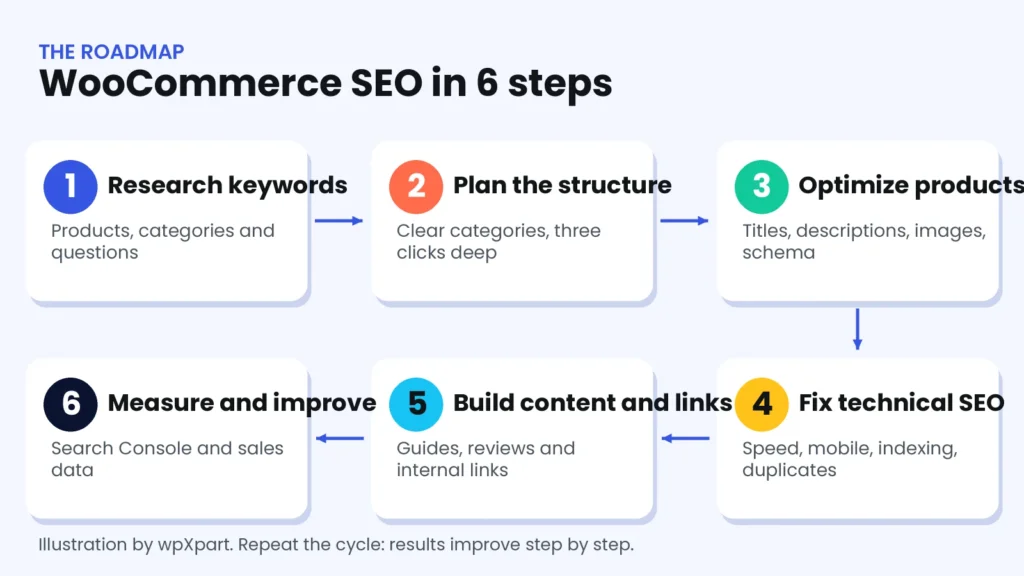
Paid ads stop the moment you stop paying, but a store that ranks well keeps sending free, ready-to-buy visitors month after month. That is why WooCommerce SEO is one of the most valuable skills an online store owner can learn. This guide walks you through 16 practical steps, from keyword research and store structure to product pages, schema, speed, reviews and measurement.
You will get a step-by-step process, two tables, a tools list and a checklist to use on every new product.
What is WooCommerce SEO?
WooCommerce SEO is search engine optimization for online stores built on WooCommerce, the most popular ecommerce plugin for WordPress. Instead of ranking blog articles only, you focus on category pages, product pages and the guides that help shoppers decide. The searches behind them often show buying intent, such as a product name, a category with a modifier like best or buy, or a question about which item to choose.
Why WooCommerce SEO matters
- Free, ongoing traffic: organic visitors do not cost you per click.
- Higher trust: shoppers often trust organic results more than ads.
- Lower acquisition cost over time: a ranking page keeps working for months.
- Better fit with paid marketing: SEO and ads support each other, and our digital marketing package combines both.
SEO is a long-term channel. Many stores see first improvements after a few months, but the timeline depends on competition, your site and your content.
Step-by-step WooCommerce SEO
Step 1: Do keyword research for categories and products
Start with the words real shoppers type. List your categories and products, then expand them with Google autocomplete, the Performance report in Search Console and a review of competitor stores. Look for long, specific phrases, such as a product type plus a material, size, use or location. Choose one main keyword for each category and product page, and avoid targeting the same keyword on two pages.
Step 2: Plan a clear store structure
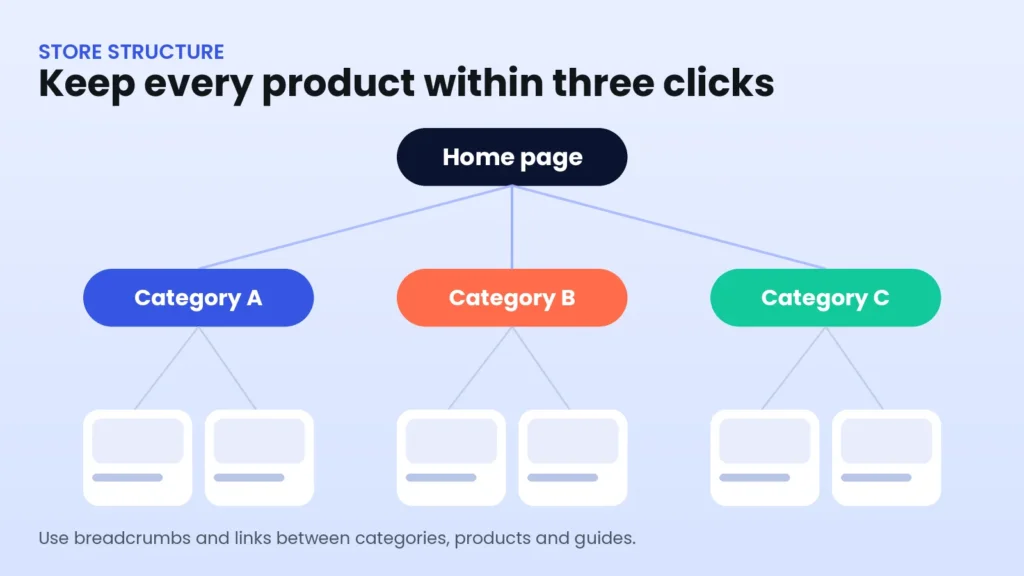
A simple structure helps shoppers and search engines. Group products into logical categories and subcategories, and keep every product within three clicks of the home page. Do not create dozens of tiny categories with only one or two items. Use breadcrumbs so every page shows where it sits in the store.
Step 3: Optimize your category pages first
Category pages often rank for the most valuable searches, yet many stores leave them empty. Give each category a clear H1, a short helpful introduction above the products, and a unique SEO title and description. Add a short buying guide or FAQ below the products when it helps shoppers. Avoid long walls of keyword text.
Step 4: Optimize every product page
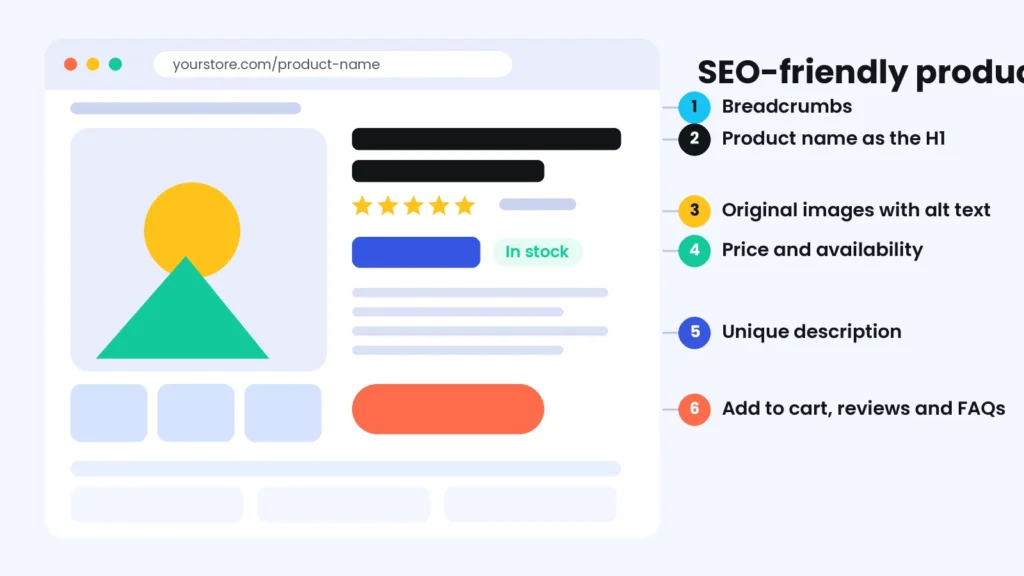
A strong product page answers the questions a shopper has before buying. Include a unique product name as the H1, benefit-focused copy, a specifications list, clear price and availability, shipping and return information, and reviews. Add a short FAQ when customers often ask the same questions.
Step 5: Write unique product descriptions
Copying the manufacturer’s text creates duplicate content, and it gives shoppers no reason to choose you. Write your own descriptions. AI can help with a first draft, but always add real details, check every fact and keep your brand voice. Our guide on how to design Elementor pages with AI shows a safe workflow for that.
Step 6: Use clean URLs and control duplicates
Keep product URLs short and readable. Filters, sorting options and tracking parameters can create many near-identical URLs, so make sure they do not compete with your main pages. Use canonical tags and, where needed, keep low-value filter pages out of the index. For product variations, make sure the main product page is the one that gets indexed.
Step 7: Add accurate structured data
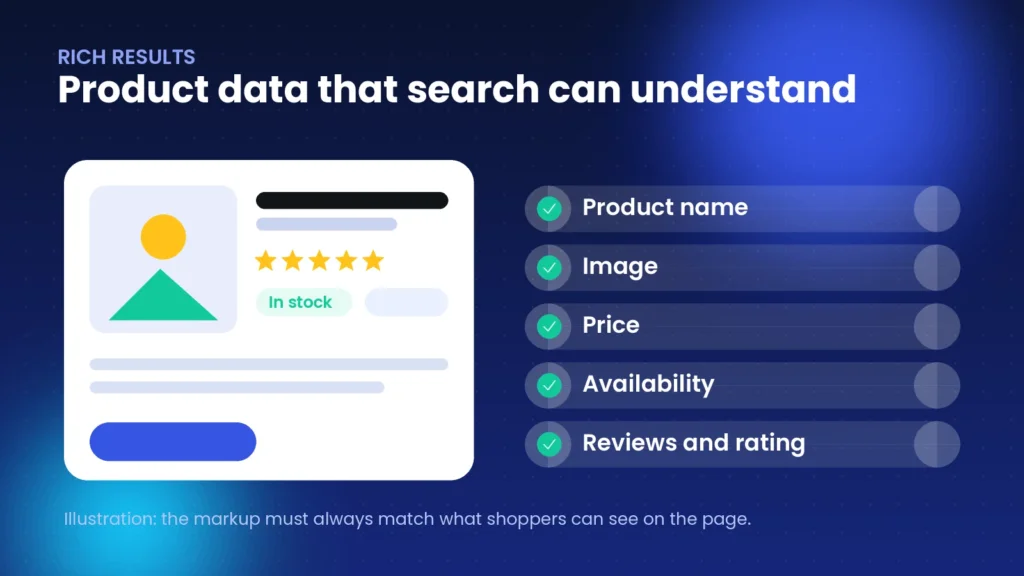
Product structured data helps search engines understand your name, image, price, availability and reviews, and it can make your listing eligible for richer results. WooCommerce outputs basic product data, and SEO plugins such as Yoast SEO add more. The golden rule is that the markup must match what shoppers can see. Test your pages with Google’s Rich Results Test.
Step 8: Make your store fast and mobile friendly
Most shoppers browse on phones, and slow pages lose sales. Optimize images, use page caching (excluding the cart, checkout and account pages), choose fast hosting and remove plugins you do not need. Read our guide on how to improve Core Web Vitals on WordPress for a full speed process, or see our speed optimization service.
Step 9: Handle out-of-stock and discontinued products
If a product will return, keep the page, show that it is out of stock and offer alternatives or a back-in-stock alert. If a product is gone for good, redirect it with a 301 redirect to the closest matching product or category, not to the home page. Do not let valuable pages turn into errors.
Step 10: Control what gets indexed
Cart, checkout and account pages should not appear in search results, and neither should internal search results. Make sure your XML sitemap includes your products and categories, and check the Pages report in Search Console to see which URLs Google has indexed.
Step 11: Collect and display real reviews
Reviews build trust and add fresh content to product pages. Invite customers to review their purchase, moderate fairly and show the reviews on the page. Never fake or buy reviews. You can also collect reviews on trusted platforms such as Google and Trustpilot.
Step 12: Publish helpful content
Buying guides, comparisons, how-to articles and FAQs attract shoppers who are still deciding. Link from each article to the relevant categories and products, and link back from products to the guide. Write for people first and add your own expertise and photos.
Step 13: Build internal and external links
Link related products, accessories and categories together so shoppers and search engines can move through your store. Earn external links through partnerships, suppliers, press, local directories and useful content. Avoid paid link schemes, which can lead to penalties.
Step 14: Use Google free product listings
Google Merchant Center lets eligible stores show products in free listings across Google. The official Google Listings and Ads plugin for WooCommerce can sync your product data. Keep your titles, prices and availability accurate and consistent with your website.
Step 15: Prepare for AI search
More shoppers now ask AI assistants for recommendations. Clear specifications, honest comparisons, FAQs and trustworthy reviews help your pages be understood and cited. We explain the basics in our guide to optimizing WordPress for AI search.
Step 16: Measure and keep improving
Connect Google Search Console and analytics with ecommerce tracking. Check which pages get impressions but few clicks, improve their titles and descriptions, and track revenue by landing page. Review your results monthly and update your best pages regularly.
WooCommerce SEO plugins and tools
| Tool | What it helps with | Note |
|---|---|---|
| Yoast SEO or a similar SEO plugin | Titles, descriptions, sitemaps, schema and breadcrumbs | Some stores add a WooCommerce-specific extension |
| WooCommerce product structured data | Basic product markup built in | Test your pages after changes |
| Google Listings and Ads | Sends product data to Google Merchant Center | Keep prices and stock accurate |
| Google Search Console | Queries, pages, indexing and enhancements | Free and essential |
| PageSpeed Insights | Speed and Core Web Vitals checks | Test mobile first |
| Rich Results Test | Checks whether structured data is valid | Free tool from Google |
Common WooCommerce SEO problems and fixes
| Problem | Why it hurts | Fix |
|---|---|---|
| Manufacturer descriptions | Duplicate content and no unique value | Write original, helpful descriptions |
| Thin category pages | Little content for search engines to understand | Add an intro, a short guide and internal links |
| Filter and sort URLs | Many similar pages compete with each other | Use canonicals and control indexing |
| Missing image alt text | Lost image search traffic and weaker accessibility | Add descriptive alt text and file names |
| Slow product pages | Shoppers leave and rankings suffer | Optimize images, cache and remove heavy plugins |
| Deleted products return errors | You lose links and visitors | Use 301 redirects to the closest match |
| Cart and checkout indexed | Wastes crawl budget and looks poor in results | Keep these pages out of the index |
Common mistakes to avoid
- Targeting the same keyword on many pages. Pages end up competing with each other.
- Ignoring category pages. They often hold the best opportunities.
- Copying supplier text. It adds no value.
- Hiding the price, stock or shipping details. Shoppers and search engines want clear information.
- Using misleading schema. Markup must match the visible page.
- Forgetting mobile shoppers. Test every key page on a phone.
- Buying links or reviews. It risks penalties and trust.
- Never measuring. Data shows what to improve next.
How we help with WooCommerce SEO at wpXpart
At wpXpart we build, speed up and optimize WooCommerce stores. We set up the structure, product and category optimization, schema, redirects, speed improvements and tracking so your store is easier to find. Explore our WooCommerce development services and WordPress SEO services, or hire a WordPress expert to review your store.
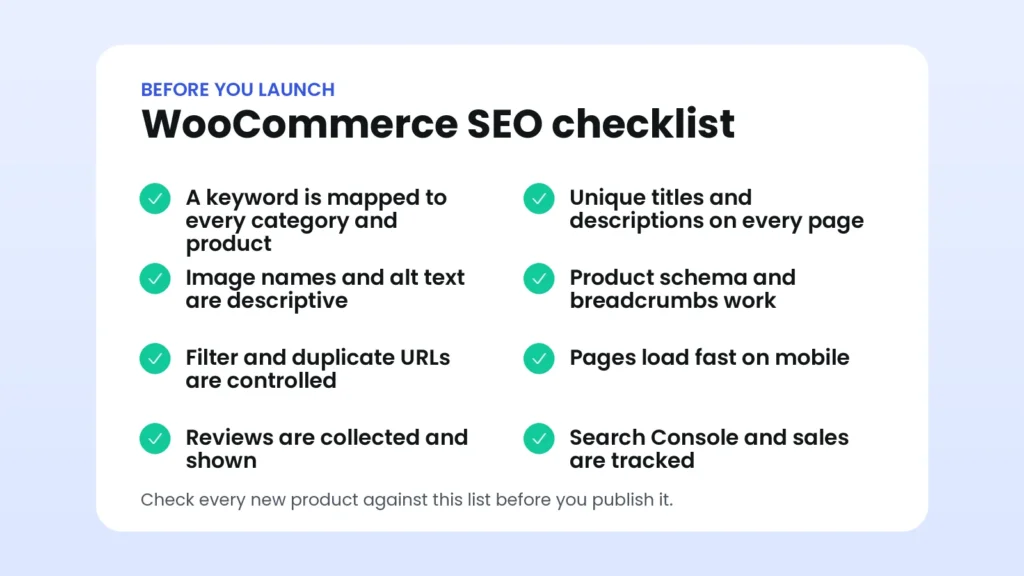
WooCommerce SEO checklist
Use this list on every new category and product.
Frequently asked questions
How long does WooCommerce SEO take to work?
It depends on competition and your starting point, but many stores see first improvements after a few months. SEO builds over time, so keep improving steadily.
Do I need an SEO plugin for WooCommerce?
An SEO plugin makes it much easier to manage titles, descriptions, sitemaps, schema and indexing. It does not replace good content and a good structure.
Should I use categories in product URLs?
Short URLs are easier to read and maintain. If you include categories in URLs, be careful that the same product does not appear under several different paths.
How do I handle product variations for SEO?
Keep one main product page for the variations, make sure it is the version that gets indexed, and describe the options clearly on that page.
Is product schema required?
It is not required to rank, but it helps search engines understand your products and can make you eligible for richer results. Make sure it is accurate.
What should I do with out-of-stock products?
Keep the page if the product will return and show alternatives. If it is discontinued permanently, use a 301 redirect to the closest relevant product or category.
Does site speed affect WooCommerce SEO?
Yes. Speed affects shopper experience and conversions, and it is part of page experience, so fast mobile pages help both SEO and sales.
Can I use AI for WooCommerce SEO?
Yes, as an assistant. Use it for drafts and ideas, then add real product details, check facts and edit for your brand.
Conclusion
WooCommerce SEO rewards stores that are clear, helpful and fast. Build a simple structure, optimize category and product pages with unique content, add accurate schema, keep the site quick on mobile, earn real reviews and measure your results. Do these things consistently and your store can become a steady source of organic sales.
Need help growing your store? Start a project with wpXpart and we will help your WooCommerce store rank and sell.

The wpXpart team designs, builds, speeds up and supports WordPress websites, and shares practical guides along the way.
Need help with your WordPress site?
Tell us about your project and get a clear, written proposal.
There’s more to read


Stay tuned with our latest updates
Subscribe for practical WordPress tips and news.