



 wpXpart Agency
A hacked website costs you visitors, sales and trust, and it often takes days to fix. The good news is that most attacks use the same few weaknesses, which means a solid WordPress security checklist can stop the large majority of them. This guide gives you 20 clear steps, from hosting and updates to logins, backups and monitoring, plus what to do if your site is already hacked.
You will get a step-by-step checklist, a threat table, a tools table and a quick checklist you can print or save.
Why WordPress sites get hacked
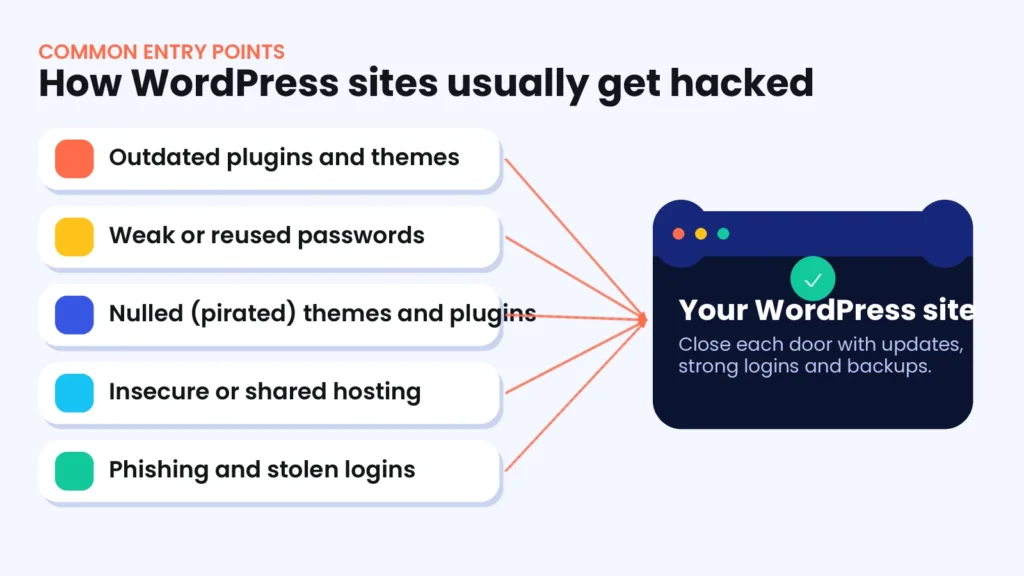
WordPress core is actively maintained and reviewed. Most successful attacks happen because of what is added around it: outdated plugins and themes, weak passwords, pirated software and poor hosting. Because WordPress is so widely used, attackers scan the internet automatically for known weaknesses, so even a small or new site can be targeted.
| Threat | What it does | Best defense |
|---|---|---|
| Outdated plugin or theme | Lets attackers use a known vulnerability | Update quickly and remove unused code |
| Brute-force login attacks | Guess usernames and passwords repeatedly | Strong passwords, 2FA and login limits |
| Malware injection | Adds spam links, redirects or hidden code | Scanning, a firewall and clean backups |
| Nulled themes and plugins | Hide backdoors inside pirated software | Use only trusted sources |
| Phishing and stolen credentials | Give attackers valid logins | 2FA, least privilege and staff awareness |
| Traffic floods | Overload your server so the site goes down | A CDN or web application firewall |
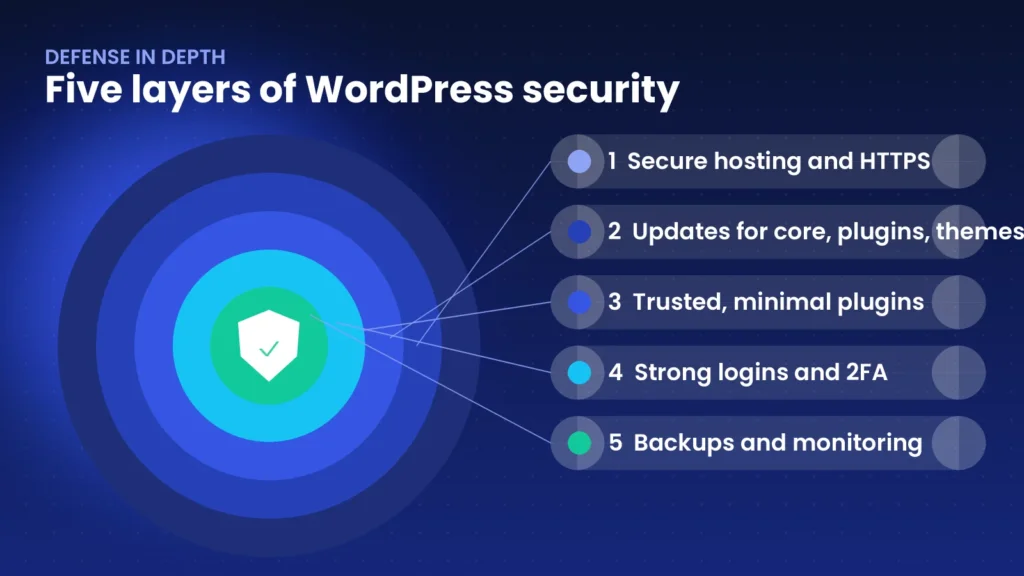
The WordPress security checklist: 20 steps
The official WordPress hardening guide covers many of these ideas in more depth. Work through the groups below in order.
Foundation: hosting, HTTPS and updates
1. Choose secure hosting. Pick a host that isolates accounts, keeps servers patched, offers malware protection and provides daily backups. Cheap shared hosting with no isolation puts every site on the server at risk.
2. Use HTTPS everywhere. An SSL certificate encrypts data between visitors and your site. Redirect all HTTP traffic to HTTPS and fix mixed-content warnings.
3. Run a supported PHP version. Old PHP versions stop receiving security fixes. Update to a currently supported version and test on staging first.
4. Keep everything updated. Update WordPress core, plugins and themes as soon as updates appear. WordPress installs minor and security releases of core automatically by default, and you can turn on automatic updates for trusted plugins. Always keep a backup before major updates.
Logins and users
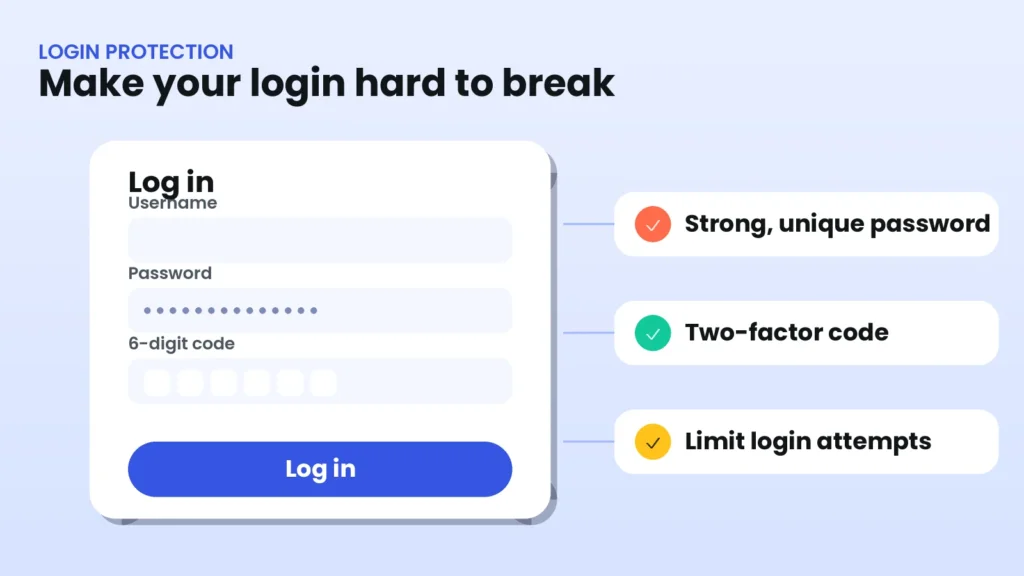
5. Use strong, unique passwords. Every account needs a long password that is not used anywhere else. A password manager makes this easy.
6. Turn on two-factor authentication (2FA). A code from an authenticator app stops most stolen-password attacks, so require it for every administrator and editor.
7. Avoid the username admin. It is the first name attackers try. Create a new administrator with a different username and delete the old one.
8. Give people the minimum role they need. Writers do not need Administrator access. Fewer powerful accounts mean fewer ways in.
9. Limit login attempts. Block or slow repeated failed logins. Many security plugins and firewalls include this feature.
10. Remove old accounts. Delete users who no longer work with you and review the user list regularly.
Plugins, themes and code
11. Install only trusted plugins and themes. Check reviews, active installations, the update history and the developer’s reputation before you install anything.
12. Never use nulled software. Free copies of paid plugins and themes often contain hidden malware, and they cannot be updated safely.
13. Delete what you do not use. Deactivated plugins and themes can still be attacked, so remove them completely.
14. Disable file editing in the dashboard. If an attacker gains access, the built-in editor lets them change code easily. Add this line to your wp-config.php file:
define( 'DISALLOW_FILE_EDIT', true );15. Set safe file permissions. A common recommendation is 755 for folders and 644 for files, with stricter permissions on wp-config.php where your host allows it. Ask your host if you are unsure.
Protection and monitoring
16. Add a web application firewall (WAF). A firewall filters bad requests before they reach WordPress. You can use a plugin firewall or a service at the network level.
17. Scan for malware. Schedule regular scans of files and the database and check the reports.
18. Monitor activity and uptime. An activity log shows who changed what, and uptime monitoring alerts you quickly if the site goes down.
Backups and recovery
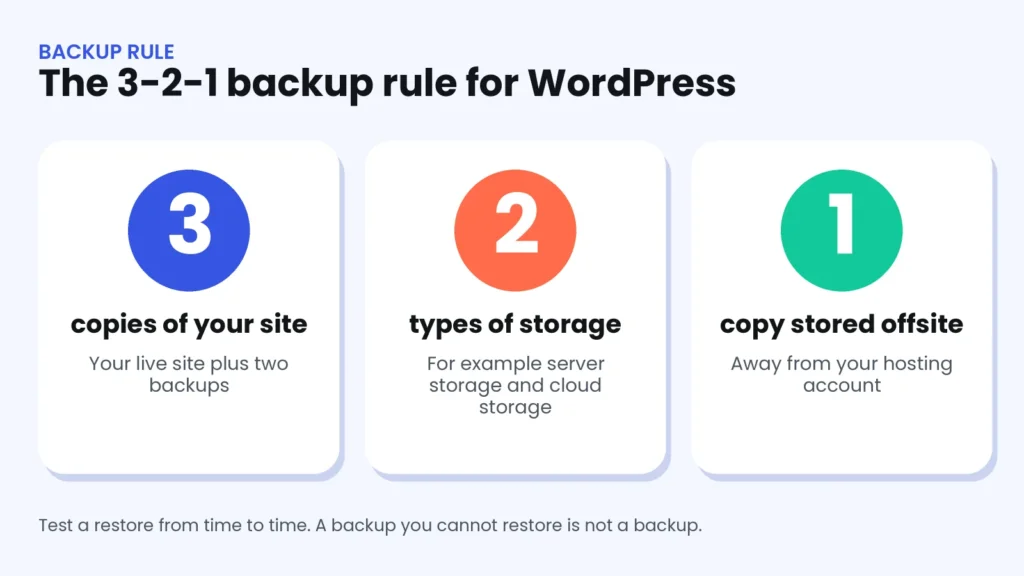
19. Keep tested backups offsite. Follow the 3-2-1 rule: three copies, two types of storage and one copy away from your host. Test a restore to make sure it works.
20. Write a simple recovery plan. Know who to call, where the backups are, how to put the site in maintenance mode and which passwords to change first. A short plan saves hours during a real incident.
Security plugins and tools
You do not need every tool. Pick one security plugin, one backup solution and a firewall option that fit your site.
| Need | Options to consider | Note |
|---|---|---|
| Firewall and scanning | Wordfence, Sucuri, Solid Security | Run one security plugin at a time to avoid conflicts |
| Vulnerability alerts | Patchstack and similar services | Helps you know when a plugin has a known issue |
| Backups | UpdraftPlus, host backups | Store a copy offsite and test restores |
| Activity log | WP Activity Log and similar plugins | Useful for sites with several editors |
| Network firewall and CDN | Cloudflare and similar services | Adds protection against floods and bad traffic |
Signs your WordPress site may be hacked
- Strange redirects to other websites, especially on mobile.
- New administrator accounts you did not create.
- Spam pages, hidden links or pharmaceutical keywords in search results.
- A browser or Google warning that the site is dangerous.
- A sudden drop in traffic, or a slow site with no clear reason.
- Files that changed without you or your developer touching them.
What to do if your site is hacked
- Stay calm and take a snapshot. Save a backup of the current state for investigation, then put the site in maintenance mode.
- Change all passwords. That includes WordPress users, hosting, FTP, database and email.
- Restore a clean backup from before the hack, if you have one, or ask your host for help.
- Update everything to the latest versions and remove anything unused or suspicious.
- Scan and clean. Look for unknown admin users, strange files and injected code.
- Close the entry point. Find out how the attacker got in, or they will return.
- Ask Google to review your site if it was flagged. Google explains the process in its guide on fixing hacked sites.
If you would rather have an expert handle it, our team offers WordPress security solutions including malware removal and hardening.
Common mistakes to avoid
- Postponing updates. Known vulnerabilities are exploited quickly.
- Reusing passwords. One leak can open every account.
- Installing too many plugins. Every plugin is extra code to maintain.
- Using pirated themes. They are a common source of backdoors.
- Having no tested backup. A backup that cannot be restored is useless.
- Giving everyone Administrator access. Use the lowest role needed.
- Ignoring alerts. Read and act on security notifications.
- Running several security plugins. They can conflict and slow the site. A slow site also hurts Core Web Vitals, as explained in our guide on how to improve Core Web Vitals on WordPress.
How we protect WordPress websites at wpXpart
At wpXpart we set up updates, hardened settings, login protection, firewalls, malware scanning and tested offsite backups for our clients, and we keep monitoring after launch. Explore our WordPress security service and our maintenance plans, or hire a WordPress expert to review your site.
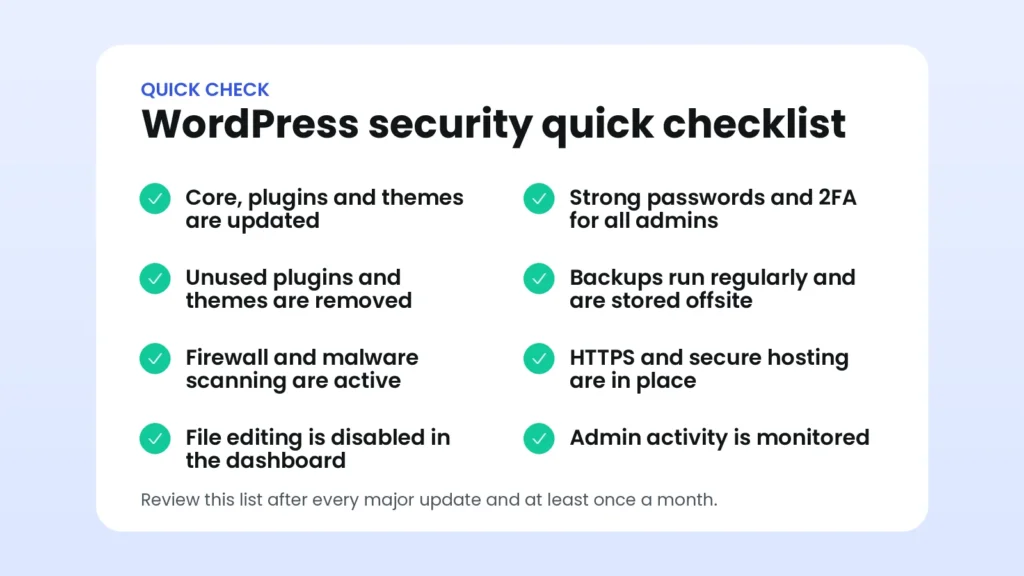
Quick security checklist
Save this list and review it every month.
Frequently asked questions
Is WordPress secure?
WordPress core is well maintained and can be very secure. Most problems come from outdated or untrusted plugins and themes, weak passwords and poor hosting, which you can control.
Do I need a security plugin?
It is strongly recommended. A good plugin or service adds a firewall, scanning and login protection, but it does not replace updates, strong passwords and backups.
How often should I update WordPress?
Check for updates at least weekly and apply security updates as soon as possible. Back up first, and test major updates on a staging site.
What is two-factor authentication?
2FA asks for a second proof of identity, usually a code from an app on your phone, in addition to your password, so a stolen password is not enough to log in.
How often should I back up my site?
It depends on how often your content changes. Many sites back up daily, and busy stores may need more frequent or real-time backups. Always keep a copy offsite.
Can a hacked site hurt my SEO?
Yes. Spam pages, malicious redirects and security warnings can reduce traffic and trust, so clean the site quickly and request a review if Google flagged it.
Should I hide or rename the WordPress login page?
It can reduce noise from bots, but it is not a replacement for strong passwords, 2FA and login limits. Treat it as an optional extra.
What should I do first if I think my site is hacked?
Take a backup, change all passwords, put the site in maintenance mode and restore a clean backup or call a security professional.
Conclusion
A WordPress security checklist works because it turns a big problem into small, repeatable habits: update, control access, trust only good code, protect and monitor, and keep tested backups. Do the basics well and you remove the easiest ways in for attackers.
Need help securing your site? Start a project with wpXpart and we will protect your WordPress website.

The wpXpart team designs, builds, speeds up and supports WordPress websites, and shares practical guides along the way.
Need help with your WordPress site?
Tell us about your project and get a clear, written proposal.
There’s more to read

Stay tuned with our latest updates
Subscribe for practical WordPress tips and news.