




 wpXpart Agency
Slow pages lose visitors, and many site owners never find out why. If you want to improve Core Web Vitals on WordPress, you need a clear method, not a random list of plugins. This guide explains what Core Web Vitals are, how to measure them, and the exact steps that fix the three metrics that matter most: LCP, INP and CLS.
You will get a 10-step process, tables of common problems and tools, tips for Elementor sites and a checklist you can use after every update.
What are Core Web Vitals?
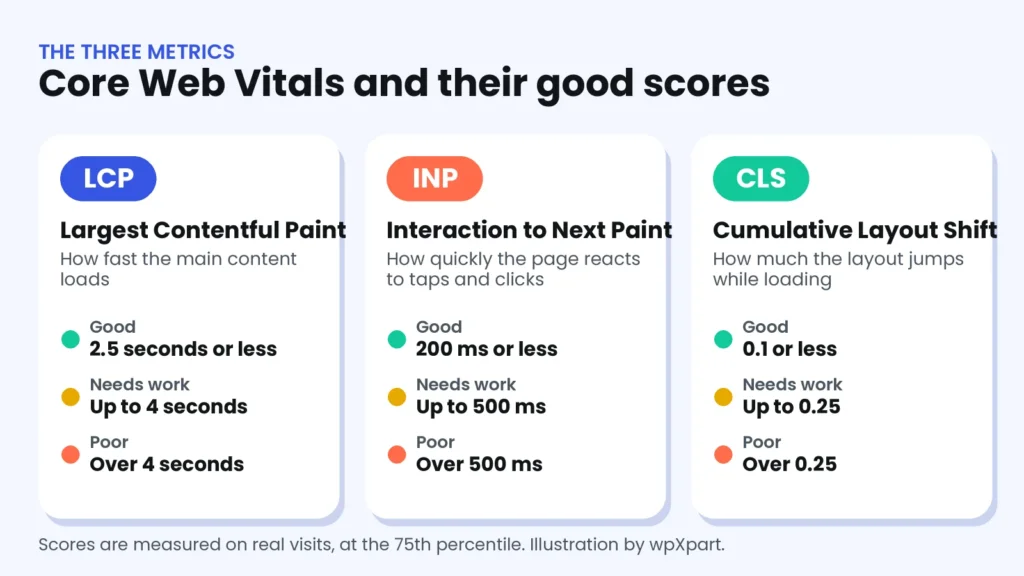
Core Web Vitals are Google’s measurements of how a page feels to real visitors. They focus on three things: loading, responsiveness and visual stability.
- Largest Contentful Paint (LCP): how long it takes for the largest visible element, often a hero image or a big heading, to appear.
- Interaction to Next Paint (INP): how quickly the page responds when someone taps, clicks or types. INP replaced the older First Input Delay metric in 2024.
- Cumulative Layout Shift (CLS): how much the layout jumps around while the page loads.
| Metric | Good | Needs improvement | Poor |
|---|---|---|---|
| LCP | 2.5 seconds or less | Up to 4 seconds | Over 4 seconds |
| INP | 200 milliseconds or less | Up to 500 milliseconds | Over 500 milliseconds |
| CLS | 0.1 or less | Up to 0.25 | Over 0.25 |
Google assesses these scores at the 75th percentile of real page visits, separately for mobile and desktop. That means a page passes only when most of your real visitors have a good experience. You can read the official definitions on web.dev.
Do Core Web Vitals affect SEO?
Page experience is one of many signals, and Google says that great content still matters most. Core Web Vitals are not a magic ranking switch, but a fast, stable page keeps visitors, lowers bounce, helps conversions and removes a common technical weakness. If two pages are equally helpful, the better experience can make a difference.
How to measure Core Web Vitals
Always start with data. These free tools show where you stand:
- PageSpeed Insights: shows real-world data (field data) when available, plus a lab test and specific recommendations. Test the mobile tab first.
- Google Search Console: the Core Web Vitals report groups your URLs into good, needs improvement and poor, so you can fix problems by type.
- Chrome DevTools and Lighthouse: lab tools for developers that help you find the exact cause.
Remember the difference between the two kinds of data. Field data comes from real visitors and is what Google uses. Lab data is a controlled test, which is useful for debugging but can differ from real life. Field data updates over a rolling period of about 28 days, so improvements take time to appear.

Step-by-step: how to improve Core Web Vitals on WordPress
Step 1: Get a baseline
Test your home page, your most important service page and your most visited post in PageSpeed Insights on mobile. Write down the LCP, INP and CLS values and the main recommendations. This gives you a before-and-after comparison, and it shows which metric needs the most attention.
Step 2: Start with fast hosting and page caching
A slow server response delays everything that follows, and no amount of image tuning fixes it. Choose reliable hosting with a recent PHP version, then turn on page caching so visitors receive ready-made pages instead of waiting for WordPress to rebuild them. Popular options include LiteSpeed Cache on supported hosts and several well-known paid caching plugins. Configure one caching plugin only, because running two causes conflicts.

Step 3: Fix your LCP element
Find out what your LCP element is. PageSpeed Insights shows it in the diagnostics. On most WordPress sites it is the hero image or a large heading. Then apply these fixes:
- Do not lazy-load the LCP image. Lazy loading is for images below the fold.
- Compress the image, serve it in a modern format such as WebP and size it for the screen.
- Give the image high priority with the fetchpriority attribute where your theme or builder supports it.
- Avoid sliders and video backgrounds in the first screen, because they are slow to load.
- Reduce render-blocking CSS and load only the fonts you need.
Recent versions of WordPress help by treating the first large content image more carefully, but themes and page builders can still override this, so always check the real result.
Step 4: Optimize every image
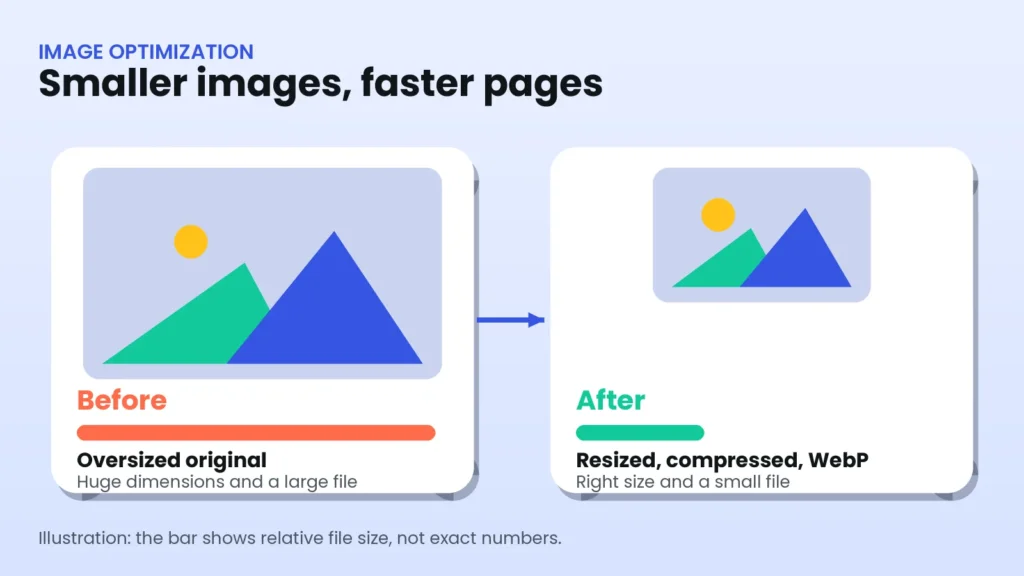
Images are usually the heaviest part of a page. Resize them to the size they are displayed, compress them, convert them to WebP and let WordPress create responsive sizes. Add descriptive alt text at the same time, which also helps SEO and accessibility.
Step 5: Reduce JavaScript to improve INP
INP problems usually come from too much JavaScript running on the main thread. To reduce it:
- Remove plugins and add-ons you do not use.
- Delay or defer scripts that are not needed on first load.
- Limit third-party scripts such as chat widgets, trackers, heatmaps and social embeds.
- Replace heavy sliders, pop-ups and animation effects with simpler designs.
- Test real interactions, such as opening the menu, using filters and submitting a form.
Step 6: Prevent layout shift to improve CLS
Layout shift happens when elements move after they appear. Prevent it with these habits:
- Set width and height for images, videos and iframes so space is reserved.
- Reserve space for ads, banners and embeds.
- Avoid inserting new content above content that is already visible.
- Use font-display swap with a similar fallback font, and preload important fonts.
- Animate with transform and opacity, not with properties that change layout.
Step 7: Choose a lightweight theme and clean builder setup
A lean theme such as Astra or Hello Elementor gives you a fast starting point. If you use a page builder, keep layouts simple: avoid deeply nested sections, limit entrance animations and disable widgets and add-on packs you do not use. Our guide on how to design Elementor pages with AI shows how to build clean layouts from the start.
Step 8: Clean up plugins and the database
List every active plugin and ask what it does and whether you still need it. Replace heavy plugins with lighter ones, remove abandoned ones and delete unused themes. Clear old revisions, expired transients and spam comments, and keep the database tidy.
Step 9: Use a CDN and compression
A content delivery network serves your files from servers close to each visitor, which helps visitors far from your host. Make sure Gzip or Brotli compression is on, and use modern protocols such as HTTP/2 or HTTP/3, which most good hosts support.
Step 10: Retest and monitor
After each change, test again in PageSpeed Insights, and keep an eye on the Core Web Vitals report in Search Console. Because field data covers about 28 days, check progress weekly rather than hourly. If a score gets worse after an update, undo the last change and test again.
Common problems and how to fix them
| Symptom | Likely cause | Fix |
|---|---|---|
| High LCP on mobile | Large hero image, slow server or render-blocking CSS | Optimize and prioritize the hero image, enable caching and trim CSS |
| Poor INP | Heavy JavaScript, too many plugins or third-party scripts | Remove unused plugins, delay non-critical scripts and simplify interactions |
| High CLS | Images without dimensions, late banners or font swaps | Set dimensions, reserve space and preload fonts |
| Good lab score but poor field data | Real visitors use slower devices and networks | Test on mobile, reduce page weight and check third-party scripts |
| Scores drop after an update | A new plugin, script or setting | Undo the change, then retest step by step |
Tools and plugins that help
| Tool | Use | Note |
|---|---|---|
| PageSpeed Insights | Field and lab data with recommendations | Free. Test mobile first |
| Google Search Console | Core Web Vitals report for your whole site | Free. Connect it with Site Kit or directly |
| A caching plugin | Page caching and file optimization | Use one plugin only and test after changes |
| An image optimization plugin | Compression and WebP conversion | Compress before and after upload and keep originals |
| Query Monitor | Finds slow queries and plugins | Mainly for developers and staging sites |
Common mistakes to avoid
- Chasing a perfect 100 score. Aim for good real-world scores, not a number.
- Installing several caching plugins. They conflict and slow the site.
- Lazy-loading the hero image. It delays LCP.
- Ignoring mobile. Most visitors and Google’s assessment start there.
- Adding scripts without testing. Chat widgets and trackers often hurt INP.
- Skipping image dimensions. This causes layout shift.
- Testing once. Measure before and after every change.
- Forgetting backups. Always back up before optimizing.
How we improve Core Web Vitals at wpXpart
At wpXpart we start with real data, then fix the biggest problem first: server and caching, hero image priority, image optimization, script clean-up and layout stability. We test on mobile, keep a backup and recheck after every change. If you would like a team to do this for you, explore our WordPress speed optimization service and our WordPress SEO services, or hire a WordPress expert. Speed also supports visibility in AI search, which we cover in our guide to optimizing WordPress for AI search.
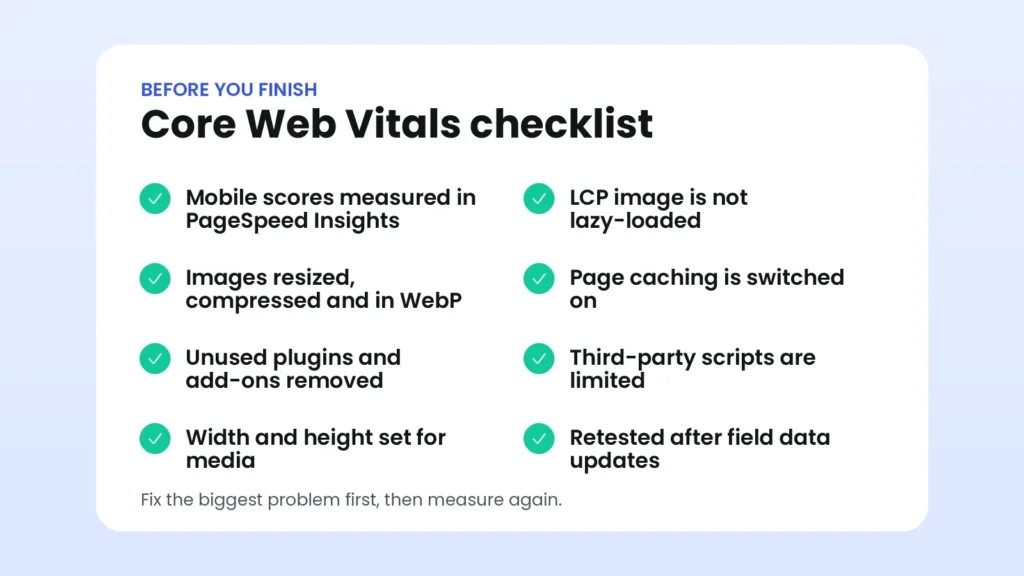
Core Web Vitals checklist
Use this list every time you update your site or launch a new page.
Frequently asked questions
What is a good Core Web Vitals score?
A good result is an LCP of 2.5 seconds or less, an INP of 200 milliseconds or less and a CLS of 0.1 or less, measured at the 75th percentile of real visits.
Did INP replace First Input Delay?
Yes. INP replaced FID as a Core Web Vital in 2024 and measures responsiveness across the whole visit, not just the first interaction.
How long until my improvements show in Search Console?
Field data uses a rolling window of about 28 days, so it can take several weeks for the report to reflect your changes.
Do I need a perfect 100 PageSpeed score?
No. A perfect score is not required. Focus on passing the three Core Web Vitals for real visitors and on a smooth experience.
Why is my lab score good but my field data poor?
Lab tests use a controlled setup, while field data comes from real devices and networks. Many visitors have slower phones and connections, so test on mobile and reduce page weight.
Will a caching plugin fix everything?
No. Caching helps loading, but images, JavaScript, fonts and layout also matter. Treat caching as one layer of several.
Do page builders hurt Core Web Vitals?
They can add extra code, but a clean build with a lightweight theme, simple layouts and optimized images can still perform very well.
Does a CDN improve Core Web Vitals?
It often helps, especially for visitors far from your server, because files arrive from a nearby location. Pair it with caching and optimized images.
Conclusion
To improve Core Web Vitals on WordPress, measure first, fix the biggest problem, and test again. Faster hosting and caching, a prioritized and optimized hero image, fewer scripts and reserved space for media will solve most LCP, INP and CLS problems. Small, steady improvements add up to a site that visitors enjoy and search engines trust.
Want expert help? Start a project with wpXpart and we will make your WordPress website faster.

The wpXpart team designs, builds, speeds up and supports WordPress websites, and shares practical guides along the way.
Need help with your WordPress site?
Tell us about your project and get a clear, written proposal.
There’s more to read


Stay tuned with our latest updates
Subscribe for practical WordPress tips and news.