





 wpXpart Agency
You can now design Elementor pages with AI in a fraction of the time it used to take, but only if you follow a clear workflow. Without one, AI gives you generic layouts, bland copy and pages that look like everyone else’s. This guide shows you exactly how to design Elementor pages with AI, step by step: which tools to use, what to ask them, how to turn the answers into a real page and how to check the result before you publish.
It is written for beginners and working web designers alike. By the end you will have a repeatable process, a set of copy-and-paste prompts and a checklist you can use on every project.
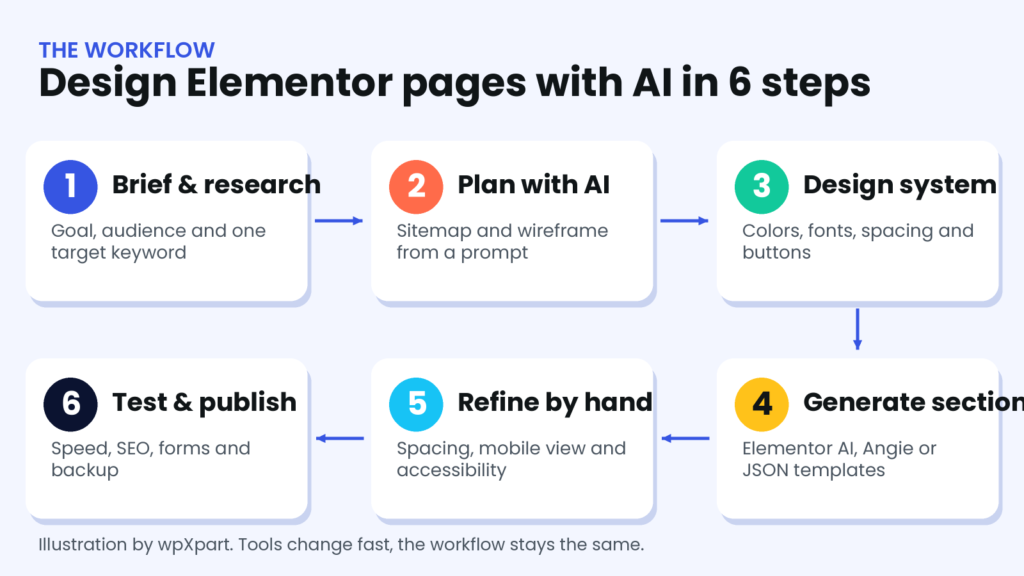
What does it mean to design Elementor pages with AI?
AI can help at four different levels. Understanding them stops you from using the wrong tool for the job.
Level 1: AI for planning and research
Chat assistants such as ChatGPT, Claude and Gemini are excellent at turning a vague idea into a structured plan. Use them to define your audience, list the questions visitors ask, outline the sitemap and suggest the sections a page needs.
Level 2: AI for copy and images
The same assistants write headlines, service descriptions and FAQs. AI image tools create illustrations, backgrounds and concept visuals. This is where most people start, and also where most generic results come from, because the prompts are too short.
Level 3: AI inside the builder
Elementor includes AI features directly in the editor, such as text, custom code and image tools, plus an AI Site Planner for sitemaps and wireframes. Elementor has also introduced Angie, an agentic AI that works with the editor and can build and edit pages from plain-language prompts. Read Elementor’s own guide to using Angie with the Elementor editor for the latest setup steps, because these features change quickly.
Level 4: AI agents connected to WordPress
A newer approach connects an AI assistant to your WordPress site through a connector, for example using the Model Context Protocol (MCP). The assistant can then create and update pages directly. It is powerful, but it should always run on a staging site or with limited permissions, and every page must be reviewed by a human before it goes live.
Benefits and limits of designing with AI
What AI does well
- Speed: a first draft of a page structure and copy in minutes instead of hours.
- Structure: consistent section order based on proven page patterns.
- Variations: ten headline options or three hero layouts to compare.
- Support for non-designers: clear suggestions for spacing, hierarchy and color.
Where AI falls short
- Generic output: without your brand details, AI produces templates that look the same for every business.
- Invented facts: AI can make up statistics, awards and testimonials. Never publish what you have not verified.
- Accessibility: contrast, focus states and heading order still need a human check.
- Image rights: check the usage terms of any AI image tool you rely on.
- Search quality: Google’s guidance focuses on whether content is helpful and original, not on whether AI was involved. Read Google’s advice on creating helpful content and edit every AI draft until it genuinely helps your reader.
AI tools you can use with Elementor in 2026
There is no single best tool. Most good workflows combine two or three. Features and pricing change often, so check each vendor’s current documentation before you commit.
| Tool type | Examples | Best for | Watch out for |
|---|---|---|---|
| Elementor AI | Built into the Elementor editor | Text, custom CSS or code and images without leaving the editor | Usually credit-based, so check your plan |
| AI Site Planner | Elementor’s planning tool | Sitemaps and wireframes from a short description | Treat the result as a first draft |
| Angie | Elementor’s agentic AI | Building and editing pages from natural-language prompts | A newer feature that works best with the latest editor. Review every result |
| Chat assistants | ChatGPT, Claude, Gemini | Briefs, sitemaps, copy, FAQs, CSS and template JSON | Can invent facts, so give real business details |
| AI image tools | Midjourney, OpenAI image tools, Adobe Firefly | Illustrations, backgrounds and concept visuals | Usage rights, file size and consistent style |
| AI connectors (MCP) | An assistant connected to WordPress | Creating and updating draft pages directly | Use staging and limited permissions |
Before you start: what you need
- A WordPress website with Elementor installed. The free version is enough to follow most of this guide, although some AI features and widgets depend on your plan.
- A fast, lightweight theme such as Astra or Hello Elementor.
- A staging site or a fresh backup, so mistakes are easy to undo.
- Your brand basics: logo, colors, fonts and tone of voice.
- Real content: services, prices, process and any testimonials you have permission to use.
- One AI assistant you are comfortable with, and a target keyword for the page.
Step-by-step: how to design Elementor pages with AI
Step 1: Write a clear brief
The quality of your result depends on the quality of your brief. Spend ten minutes writing down the facts the AI cannot guess:
Business: [what you do and for whom]
Page goal: [one action, for example request a quote]
Audience: [who they are and what worries them]
Offer: [services, prices or packages]
Tone: [friendly, expert, premium]
Target keyword: [the phrase people search]
Must-have sections: [hero, services, proof, FAQ]
Brand: [colors, fonts, logo style]
Step 2: Plan the sitemap and wireframe with AI
Paste your brief into an AI assistant, or use Elementor’s AI Site Planner, and ask for a sitemap and a section-by-section wireframe. Keep each page focused on one goal and between five and seven sections. A typical landing page flows from a hero with one main button, to a trust strip, services, reasons to choose you, process or FAQ, and a final call to action.

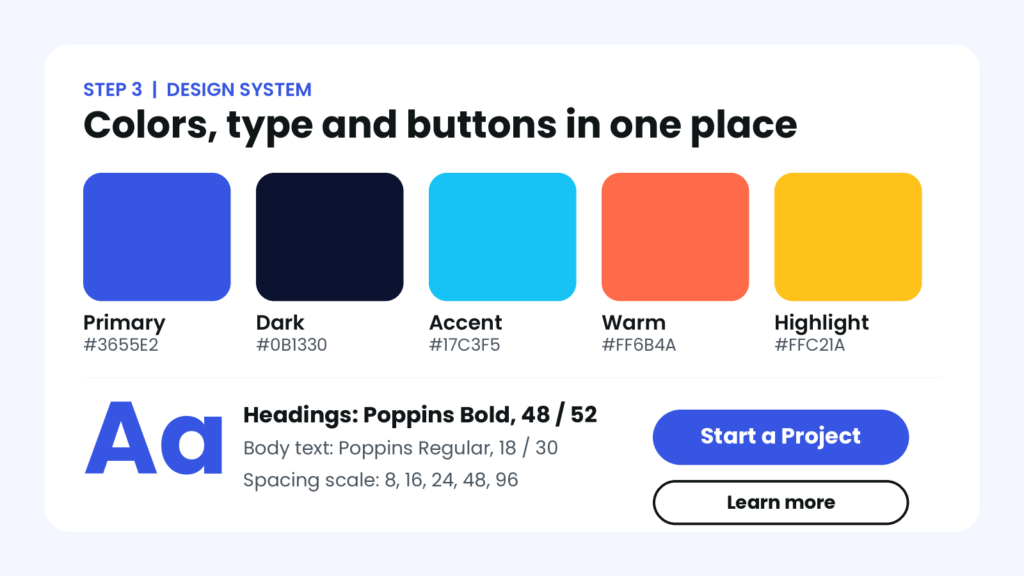
Step 3: Create a design system
Before you build anything, define your colors, fonts and spacing so every section looks consistent. Ask the AI for a palette of five colors with hex codes, a heading and body font pair, and a spacing scale. Then check the contrast: WCAG recommends a ratio of at least 4.5 to 1 for normal body text. You can read the rule in the W3C contrast guidance.
In Elementor, save the result under Site Settings, in Global Colors and Global Fonts. From now on every widget uses the same system, and a future rebrand takes minutes.
Step 4: Generate the copy
Good AI copy starts with specific input. Give the assistant your real facts, ask for three headline options per section, and tell it what to avoid. Keep sentences short, put the target keyword in the main heading and the first paragraph, and write for a person, not for a search engine.
Always remove anything you cannot prove. Fake testimonials, invented numbers and vague claims such as best in the world damage trust and can break advertising rules.
Step 5: Build the layout in Elementor
Now turn the plan into a page. There are four practical paths, and you can mix them.
Path A: Elementor AI and Site Planner. Create the page in Elementor, then use the AI tools in the editor to generate text, custom CSS and images for each section. Use the Site Planner when you want a sitemap and wireframe inside the Elementor ecosystem.
Path B: Angie. Install Angie, describe the page you want in plain language and let it build the first version in the editor. Start with one section at a time, such as the hero, so you can check the structure before it builds the rest.
Path C: Chat assistant plus template import. Export a small template from your own site and give it to your assistant as an example of Elementor’s structure. Ask for a new template in the same format, save it as a .json file, then go to Templates, Saved Templates, Import Templates in WordPress and upload it. Always test on staging, because generated files can contain errors and may need a few fixes.
Path D: An AI assistant connected to WordPress. With a connector, the assistant can create the draft page directly. Give it your brief, design system and copy, and ask it to create the page as a draft, never as a live page.
Step 6: Create and optimize images
Use AI images for illustrations and concept visuals, and real photos for people, products and places. Whatever you use, compress it before you upload: resize to the display size, use a modern format such as WebP and add descriptive alt text. Large images are the most common reason AI-built pages feel slow.
Step 7: Refine by hand
This step is what separates a professional page from a generic one. Open the page and work through it like a visitor:
- Fix spacing so sections breathe and align to the same grid.
- Check the tablet and mobile views and adjust font sizes and columns.
- Make sure there is one obvious main button per screen.
- Rewrite any phrase that sounds like it could belong to any company.
- Test forms, links and animations.
Step 8: Optimize the page for SEO
A beautiful page still needs to be found. Put the target keyword in the page title, the H1, the URL and the meta description, use one H1 and logical H2 and H3 headings, and add internal links to related pages. A plugin such as Yoast SEO makes it easy to set titles and descriptions. Then make the page fast with caching and image optimization. If you want expert help, see our WordPress SEO services and speed optimization services.
Step 9: Test and publish
Before you publish, test the page on a real phone, run it through PageSpeed Insights, submit a test form and check the browser for errors. Take a backup, publish, and then add the page to Google Search Console so you can watch how it performs.
Copy-and-paste AI prompts for Elementor
These prompts work with most chat assistants. Replace the text in brackets with your own details, and always review the answers.
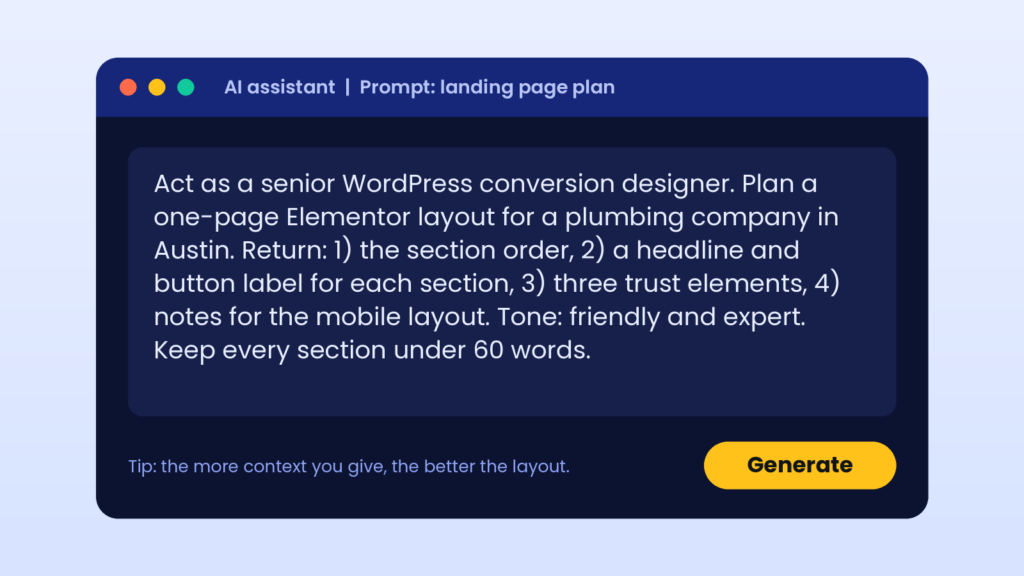
Prompt 1: Site and page plan
Act as a senior WordPress and conversion designer. Using this brief: [paste brief], create a sitemap and a section-by-section wireframe for the home page. For each section give the purpose, a headline, the button label and notes for mobile. Keep it to seven sections or fewer.Prompt 2: Hero section
Write five hero options for [business] aimed at [audience]. Each option needs a headline under 10 words, a supporting sentence under 25 words and a button label. Include the phrase [keyword] naturally in two options. Do not invent statistics or awards.Prompt 3: Services section
Turn these services into a services section for an Elementor page: [list services]. For each service write a title under 5 words, a benefit-focused sentence under 20 words and a suggested icon name. Use plain language and no jargon.Prompt 4: FAQ section
Write eight frequently asked questions that a customer of [business] would really ask before buying. Answer each in 40 to 60 words, using only these facts: [facts]. If you do not know an answer, say so instead of guessing.Prompt 5: Design system
Suggest a design system for [business] in the [industry] industry: five colors with hex codes and roles, a heading and body font pair from Google Fonts, button styles and a spacing scale. Check that body text colors meet a 4.5 to 1 contrast ratio on their backgrounds.Prompt 6: Small CSS improvements
Write custom CSS for Elementor that adds a subtle lift and shadow on hover to elements with the class my-card, and respects the prefers-reduced-motion setting. Explain where to paste it.Common mistakes to avoid
- Writing a one-line prompt. Short prompts create generic pages. Use a full brief.
- Skipping the design system. Without global colors and fonts, every section looks different.
- Publishing AI text unedited. Edit for accuracy, voice and usefulness.
- Trusting invented facts. Check every number, claim and quote.
- Ignoring mobile. Most visitors are on phones, so check that view first.
- Using huge images. Compress and resize everything.
- Stacking too many plugins and add-ons. Each one adds weight.
- Forgetting SEO basics. A clear title, one H1 and good internal links still matter.
How we design Elementor pages with AI at wpXpart
At wpXpart we use AI assistants to speed up planning and first drafts, then build, refine and test every page in Elementor ourselves. For some projects we also work with an AI assistant that can create draft pages on a WordPress site, and we always review each page by hand before anything goes live. The result is faster delivery without giving up quality, accessibility or performance. If you would like a team that works this way, take a look at our page builder development service or hire a WordPress expert.
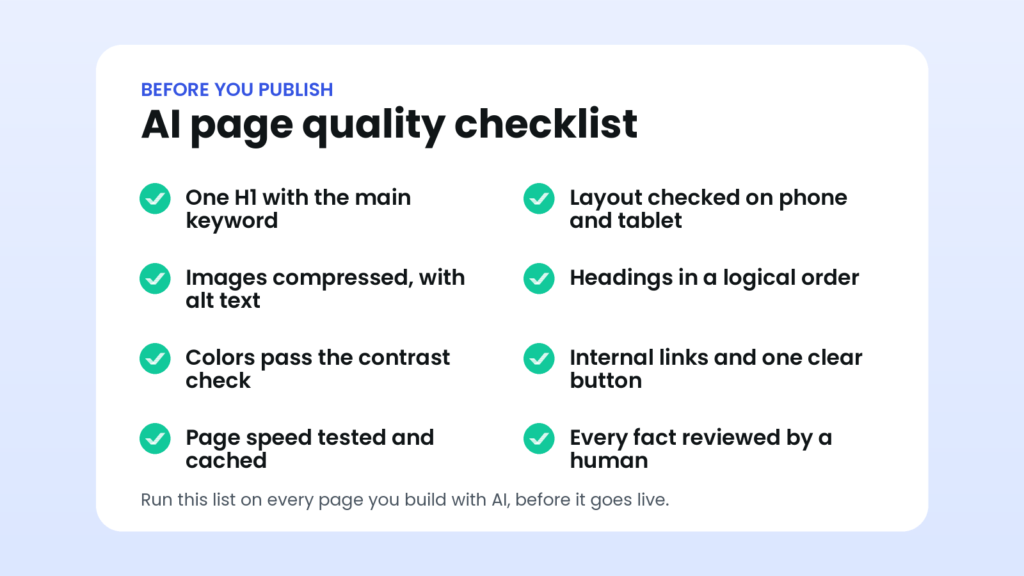
AI Elementor page checklist
Run through this list before you publish any page you built with AI.
What is next for AI and Elementor?
- More agentic tools. Assistants like Angie move from suggesting to doing, so reviewing their work becomes a core skill.
- Connectors between AI and WordPress. Standards such as MCP make it easier for assistants to work with your site safely.
- Design systems first. The better your global colors, fonts and components, the better AI results will be.
- Search is changing. More people ask AI assistants for answers, so clear structure, real expertise and helpful content matter more than ever.
Frequently asked questions
Can AI design a whole Elementor website?
AI can produce a solid first draft of a page or even a small site, but a human still needs to review the copy, brand fit, accessibility, speed and SEO before it goes live.
Is Elementor AI free?
Elementor’s AI features typically use a credit system, and plans change over time, so check the current details on elementor.com before you rely on them.
Do I need Elementor Pro?
The free version is enough to follow most of this guide. Some AI features and advanced widgets depend on your plan, so check what is included.
Can ChatGPT or Claude build Elementor pages?
They can plan the page, write the copy, create CSS and generate template files you can import. With a connector they can also create draft pages directly, as long as you review them.
Is AI-written content bad for SEO?
No. Google focuses on whether content is helpful, original and made for people. Use AI as a starting point, then add your own expertise, examples and edits.
How do I make AI-designed pages look unique?
Use your own brand assets and real photos, build a custom design system, rewrite generic copy and avoid default layouts. Uniqueness comes from your details, not from the AI.
Will using AI make my website slow?
AI itself does not slow a site. Heavy images, too many add-ons and missing caching do. Optimize images and test speed before you publish.
Will AI replace WordPress developers?
AI speeds up repetitive work, but strategy, quality control, performance, security and understanding a client’s business remain human skills.
Conclusion
To design Elementor pages with AI well, treat the AI as a fast assistant and yourself as the art director. Write a strong brief, plan the structure, set a design system, generate and edit the copy, build in Elementor, refine by hand and test before you publish. Follow that process and you get the speed of AI with the quality of a professional build.
Want expert help? Start a project with wpXpart and we will build your Elementor pages the right way.

The wpXpart team designs, builds, speeds up and supports WordPress websites, and shares practical guides along the way.
Need help with your WordPress site?
Tell us about your project and get a clear, written proposal.
There’s more to read


Stay tuned with our latest updates
Subscribe for practical WordPress tips and news.