 wpXpart Agency
AI assistants are no longer limited to chat. With the Model Context Protocol (MCP), you can connect AI agents to WordPress so they can draft posts, upload media, review plugins and handle routine site tasks from plain-language instructions. This guide explains what MCP is, how the WordPress side works, which setup method to choose, how to connect popular AI tools, and how to keep your site safe while you do it.
You will get a step-by-step process, example prompts, a comparison table, a troubleshooting list and a safety checklist.

What is MCP and why does it matter for WordPress?
MCP is an open standard that lets AI applications talk to outside tools and data in a consistent way. You can think of it as a universal plug. Without it, every AI tool needs a custom integration for every service. With it, a service publishes an MCP server once and any compatible AI client can use it. The official site, modelcontextprotocol.io, explains the protocol in detail.
For WordPress owners this means an AI agent can do real work on your site instead of just giving advice. You describe a task, the agent calls the tools your site exposes, and WordPress carries out the action under the permissions of the connected user.
How WordPress supports MCP
Three pieces work together, and it helps to know the difference:
- The REST API: the long-standing way for outside applications to read and change WordPress content.
- The Abilities API: added in WordPress 6.9, it gives core, plugins and themes a standard way to declare what they can do, with clear inputs, outputs and permission checks.
- The MCP Adapter: an official project in the WordPress GitHub organization that exposes those abilities to AI agents as MCP tools. See the WordPress MCP Adapter repository for the current documentation. The project is still evolving, so check the release notes before you rely on it for important work.
Plugin and hosting companies also offer their own MCP connectors, which package the setup into something much simpler.
What can an AI agent do on your WordPress site?
It depends on the tools your setup exposes, but common tasks include:
- creating draft posts and pages from an outline,
- editing titles, excerpts, categories and tags,
- uploading images and setting alt text,
- listing plugins and showing which ones need updates,
- checking pages for missing SEO titles or descriptions,
- working with WooCommerce products or orders when those tools are available, and
- answering questions about your site settings and content.
Always start with read-only or draft-only tasks, then expand carefully.
What you need before you start
- A recent version of WordPress. Plugin abilities rely on WordPress 6.9 or later, so update first.
- A website that uses HTTPS. Secure connections are essential when an agent signs in.
- A fresh backup, and ideally a staging copy of your site.
- A separate WordPress user account for the agent, with only the role it needs.
- An AI client that supports MCP, such as Claude, ChatGPT, Cursor or another compatible tool, on a plan that allows custom connectors.
Which setup method should you choose?
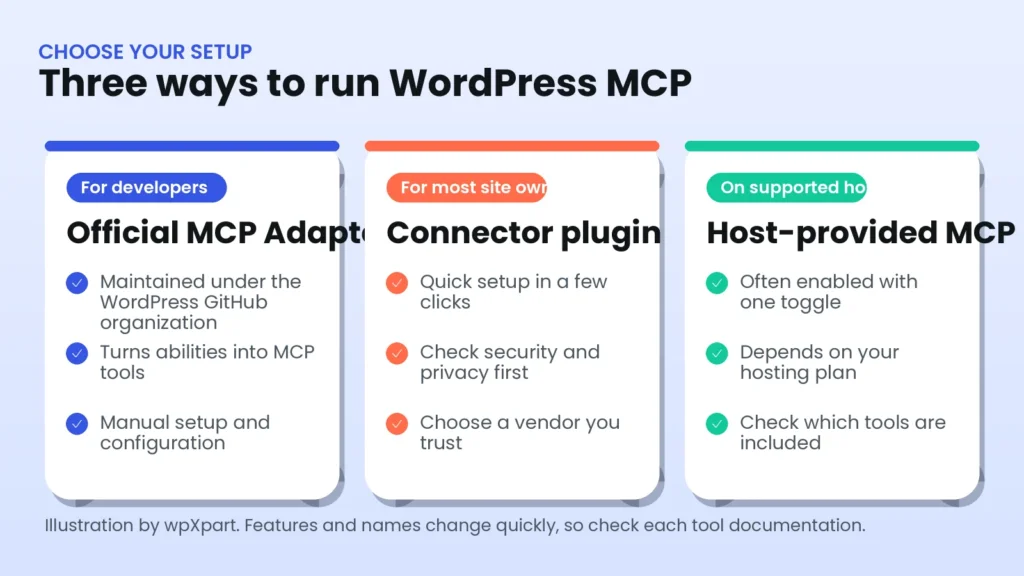
| Method | Best for | Difficulty | Things to check |
|---|---|---|---|
| Official MCP Adapter | Developers and teams that want full control and custom abilities | Higher | Still developing, so test updates before using them in production |
| Connector plugin | Most site owners who want a quick, guided setup | Low to medium | Vendor reputation, security practices and which tools it enables |
| Host-provided MCP | People on managed hosting that includes it | Low | Which plans include it and what it can do |
| Custom server | Advanced teams with specific needs | High | Maintenance, security reviews and permission design |
Step-by-step: how to connect AI agents to WordPress
Step 1: Prepare your site
Update WordPress, your theme and your plugins. Confirm the site loads over HTTPS without warnings and take a complete backup. If you can, create a staging copy and do the first connection there.
Step 2: Create a dedicated user for the agent
Go to Users, Add New and create an account just for the AI agent. Give it the lowest role that can do the job, for example Author or Editor for content tasks. Avoid the Administrator role unless you truly need it, because an agent can only do what its user is allowed to do, and fewer permissions means less risk.
Step 3: Install your MCP server or connector
Install the plugin or enable the host feature you chose. Developers can install the official MCP Adapter by following its documentation. Others can use a connector plugin from a vendor they trust. After activation, find the setup page, which usually shows your MCP server URL and how to authorize access.
Step 4: Review which tools are exposed
Open the connector settings and read the list of available tools. Switch off anything you do not need, especially tools that can change settings, install plugins, edit files or run code. Some powerful connectors can execute code on your site, so only enable those on a staging site that you can restore.
Step 5: Add the server to your AI client
Each AI app has its own screen, and the names change often, so follow the documentation for your client. In general there are three patterns:
- Claude or ChatGPT in the app: open the connectors or apps section, choose to add a custom connector, paste the MCP server URL from your site and follow the sign-in prompts. Availability depends on your plan.
- Cursor or other editors: add the server to the MCP configuration file. A simple example looks like this, with your own URL in place of the placeholder:
{
  "mcpServers": {
    "my-wordpress": {
      "url": "https://your-site.com/your-mcp-endpoint"
    }
  }
}- Command-line tools such as Claude Code: add the server with the client’s MCP command, for example:
claude mcp add --transport http my-wordpress https://your-site.com/your-mcp-endpointSome servers connect directly, and others use a small helper program on your computer, so always use the exact instructions your connector provides.

Step 6: Authorize the connection
Most connectors either open a sign-in and approval page in your browser or use a WordPress Application Password. An Application Password is created under Users, Profile for the agent’s account, it can be revoked at any time without changing the real password, and it should only ever be used over HTTPS. Store it safely and never paste it into a public chat or a shared document.
Step 7: Test with a harmless prompt
Start with a read-only request, such as asking the agent what it can do on your site or to list your last five posts. Then try creating a draft. Check that the draft appears in WordPress and that nothing was published.
Step 8: Build a safe daily workflow
- Ask for drafts and let a human publish.
- Use clear instructions with the post type, status, category and tone.
- Check the result in WordPress before sharing it.
- Keep backups and review activity regularly.
Example prompts to try
These prompts show the type of tasks you can delegate. Adjust the wording to match your tools, and always review the results.
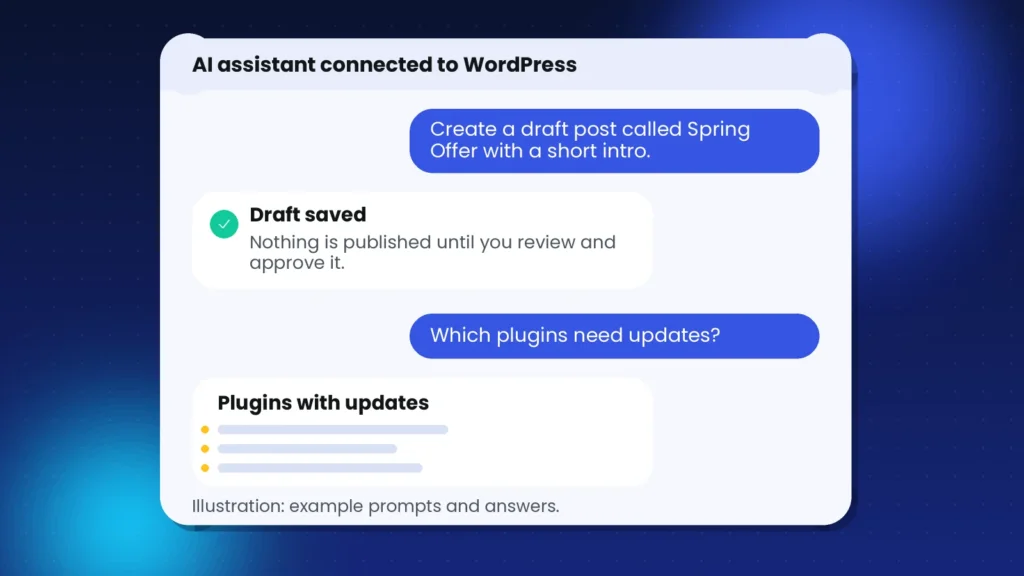
What can you do on my WordPress site? List the tools you have and what each one does.Create a draft blog post called [title] in the category [category]. Write a short introduction and an outline with five headings. Do not publish it.List all posts without a featured image and show their titles and dates.Show which plugins have updates available. Do not update anything yet.Find published pages that are missing an SEO title or meta description and suggest drafts for each one.Create a draft WooCommerce product called [name] with this description: [text]. Leave it as a draft.Is WordPress MCP safe?
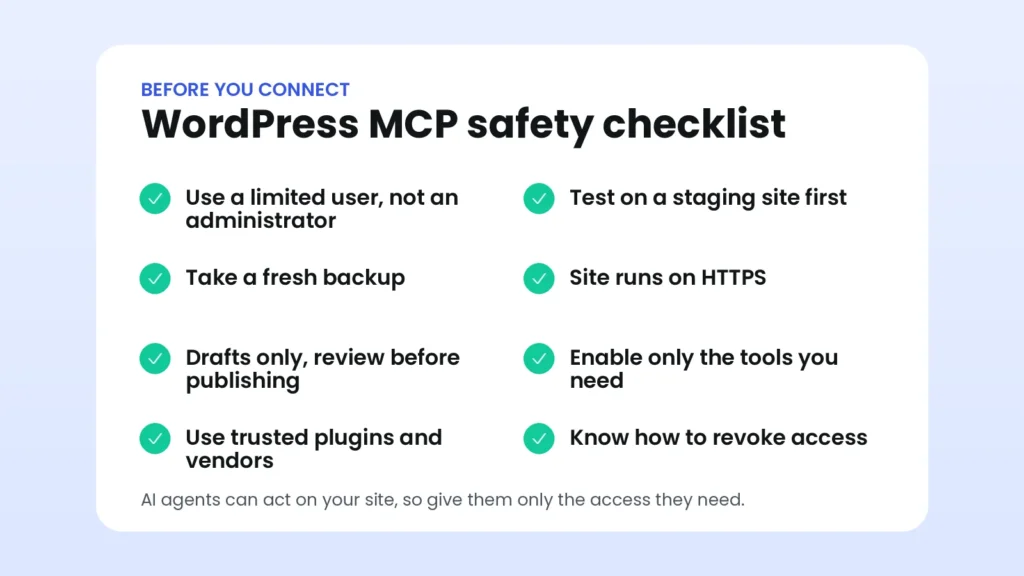
It can be, if you treat the agent like a new team member who needs limited access and supervision. An AI agent can act quickly, and a wrong instruction can change a lot of content, so safety comes from the setup around it:
- Least privilege: use a dedicated user with the minimum role.
- HTTPS only: never connect over an unsecured site.
- Staging first: test every new tool and prompt on a copy.
- Backups: keep recent backups before each session of agent work.
- Drafts, not live changes: require human approval before anything is published or deleted.
- Limit powerful tools: avoid code execution, file editing and plugin installation on a live site.
- Trusted vendors: read the plugin’s documentation, update history and support before installing.
- Revocation: know how to disable the connector and delete the Application Password.
Troubleshooting common problems
- The AI client cannot reach the server. Check the URL, make sure the site is public and uses HTTPS, and confirm the connector plugin is active.
- You see an authentication error. Recreate the Application Password or repeat the authorization, and check that the user still exists.
- A tool is missing. Check that the plugin providing it is active and that the connector exposes it.
- The agent says it lacks permission. The user’s role may be too limited for that task. Adjust the role carefully.
- A security plugin or firewall blocks requests. Review the logs and allow the connection rather than disabling the protection.
- The connection works, then stops. Look for expired sessions, changed permalinks or updated plugins, and test again on staging.
MCP compared with the REST API and automation tools
| Approach | How it works | Best for |
|---|---|---|
| MCP | An AI agent chooses and calls tools through one standard connection | Flexible, conversational tasks across many tools |
| REST API | Developers write code that calls specific endpoints | Custom apps and exact, repeatable integrations |
| Automation tools | Fixed workflows run when a trigger happens | Predictable routines, such as sending a form to a spreadsheet |
They work well together. Use automation for fixed routines, the REST API for custom integrations and MCP when you want an assistant to handle varied tasks.
How we use AI agents with WordPress at wpXpart
At wpXpart we use AI assistants connected to WordPress to speed up routine work such as drafting pages, checking SEO details and preparing content, and we review every result by hand before it goes live. We apply the same rules we recommend here: limited access, backups and drafts first. If you would like help setting up a safe connection, building custom abilities or maintaining your site, take a look at our WordPress plugin development, maintenance services and security solutions, or hire a WordPress expert. You may also like our guides on how to design Elementor pages with AI and how to optimize WordPress for AI search.
Frequently asked questions
What does MCP stand for?
MCP stands for Model Context Protocol, an open standard that lets AI applications connect to tools and data sources in a consistent way.
Do I need to know how to code to connect AI agents to WordPress?
No. A connector plugin or host feature lets most site owners set things up through a guided screen. Developers can use the official MCP Adapter for deeper control.
Is the WordPress MCP Adapter official?
Yes. It is a project in the official WordPress GitHub organization that exposes WordPress abilities as MCP tools. It is still developing, so check its documentation and release notes.
Which AI tools work with WordPress MCP?
Any client that supports MCP can connect, including Claude, ChatGPT on supported plans, Cursor and other compatible apps. Check your client’s documentation for how to add a custom server.
Can an AI agent delete my content or break my site?
It can change whatever its user permissions and enabled tools allow. That is why you should use a limited user, a staging site, backups and a draft-first workflow.
What is the difference between an Application Password and my normal password?
An Application Password is a separate key for one application. You can create it, use it and revoke it without changing your real password.
Does MCP work on any WordPress host?
It works on most hosts that allow the REST API and HTTPS, although some security settings can block requests. Some hosts also provide their own MCP feature.
Will AI agents replace WordPress developers?
Agents handle repetitive tasks well, but planning, quality control, security and understanding your business still need people. The best results come from developers and agents working together.
Conclusion
To connect AI agents to WordPress with MCP, prepare a secure site, choose a setup method you trust, give the agent a limited user, add the server to your AI client and test with harmless prompts. Keep a human in the loop, work on staging first and grow your use gradually. Done carefully, MCP can turn an AI assistant into a useful member of your WordPress team.
Need help with a safe, professional setup? Start a project with wpXpart and we will help you connect AI to your WordPress site.

The wpXpart team designs, builds, speeds up and supports WordPress websites, and shares practical guides along the way.
Need help with your WordPress site?
Tell us about your project and get a clear, written proposal.
There’s more to read

Stay tuned with our latest updates
Subscribe for practical WordPress tips and news.