
 wpXpart Agency
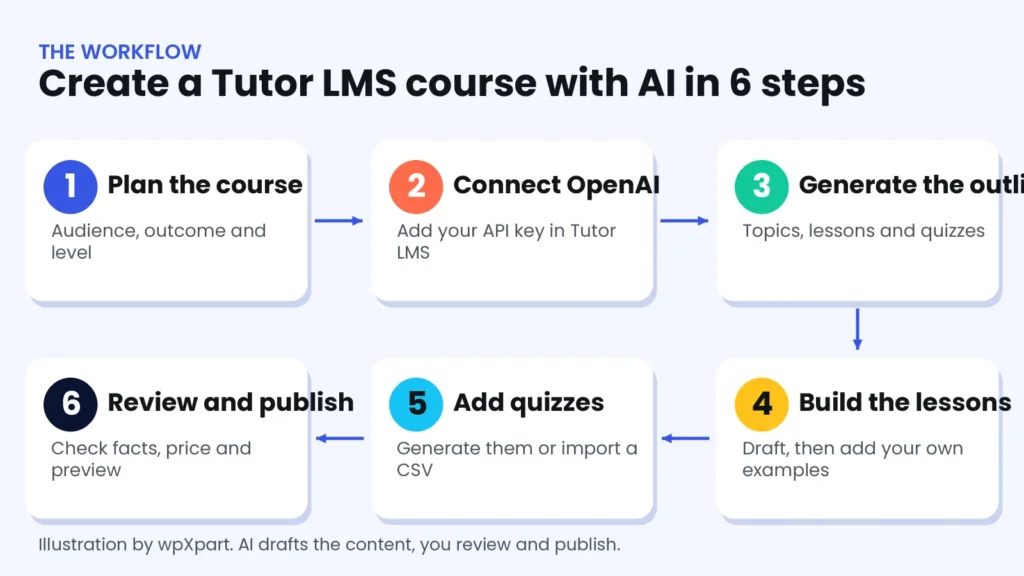
If you want to connect AI with Tutor LMS, you can turn a course idea into a full course structure in minutes instead of days. Tutor LMS Pro includes a tool called AI Studio that works with an OpenAI account, and you can also combine Tutor LMS with chat assistants such as ChatGPT or Claude to draft lessons and quizzes. This guide shows you exactly how to set it up, how to generate and upload a course, and how to review the result so your students get real value.
You will get a 10-step process, copy-and-paste prompts, a bulk-upload method for quizzes and a checklist to use before you publish.
What is Tutor LMS AI Studio?
Tutor LMS is a popular WordPress LMS (learning management system) plugin for selling and delivering online courses. AI Studio is a feature inside the plugin that uses OpenAI to help you create course content faster. According to the official Tutor LMS AI page, it can generate:
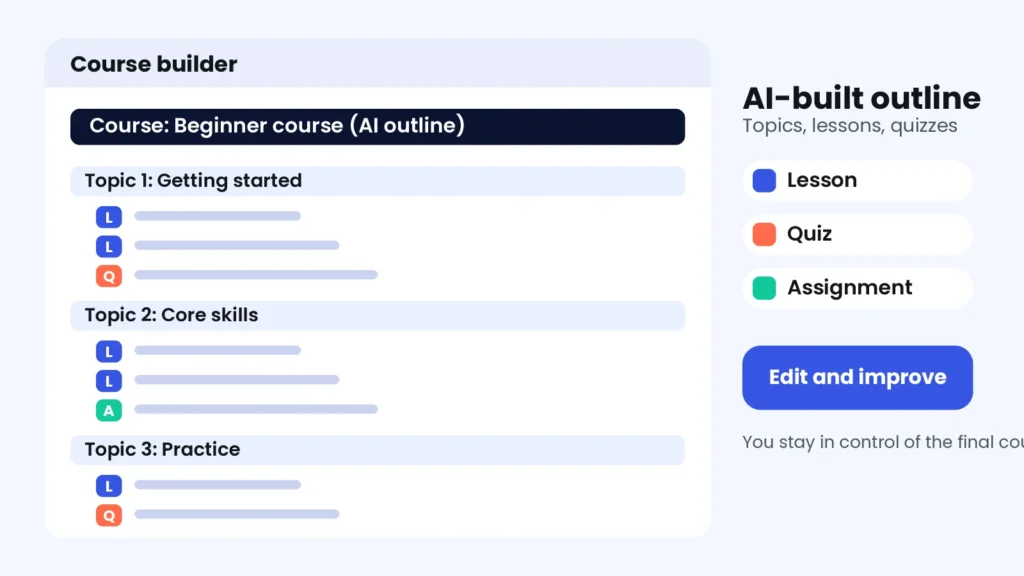
- a complete course outline with topics, lessons, assignments and quizzes,
- course titles and descriptions,
- lesson content,
- quizzes and individual quiz questions, and
- course feature images.
AI Studio is a Tutor LMS Pro feature, so it is not available in the free plugin alone. Features and menu names change between versions, so always compare these steps with the documentation for the version you are using.
What you need before you start
- A WordPress website with the Tutor LMS plugin and a Tutor LMS Pro license.
- An OpenAI account with billing set up, because AI Studio uses your OpenAI API key and API usage is billed by OpenAI.
- A clear course idea: topic, audience, level and the result students should achieve.
- A fresh backup or a staging site, so you can test safely.
- Your own materials: videos, files, examples and screenshots, because AI cannot upload or invent real teaching material for you.
Step-by-step: how to connect AI with Tutor LMS and create a course
Step 1: Create an OpenAI API key
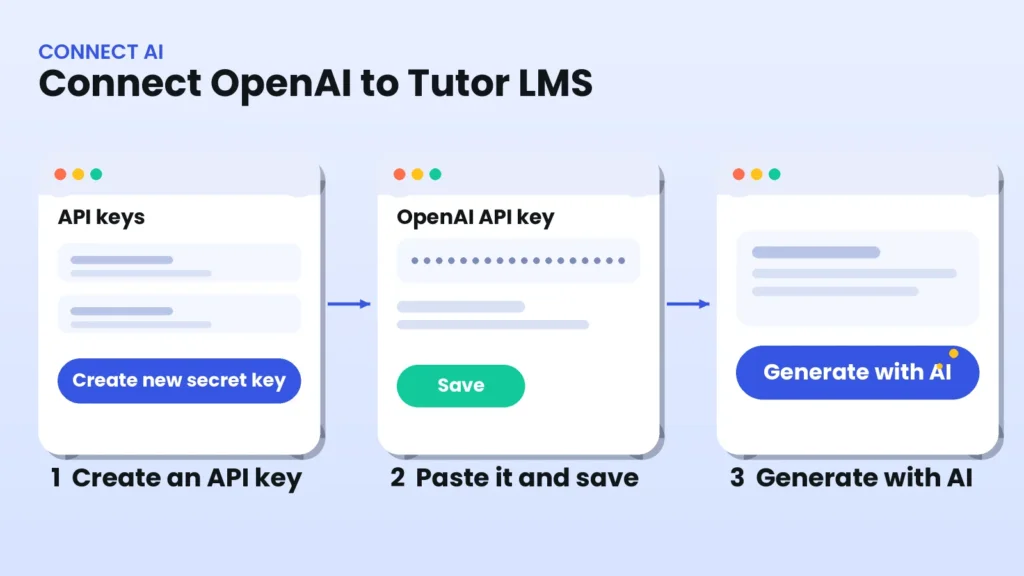
Sign in to the OpenAI platform, add a payment method, and create a new secret API key. Copy it somewhere safe, because you usually only see it once. Set a monthly usage limit so costs never surprise you, and never share the key publicly or paste it into a page that visitors can see.
Step 2: Connect the key to Tutor LMS
Open your WordPress dashboard and go to the Tutor LMS Pro settings, or open the Course Builder and click Generate with AI, then paste your OpenAI API key and save. Tutor LMS documentation describes both locations depending on the version, so use whichever your site shows. After you save, the AI options become available in the Course Builder.
Step 3: Plan your course before you generate anything
AI works best when you give it a clear plan. Write down who the course is for, what students can do after finishing it, how long it should take and what level it is. A vague idea creates a vague course, while a specific brief creates a useful outline.
Step 4: Generate the course outline
Create a new course, open the Course Builder and choose the AI option to generate a full course outline. Describe your topic, tone and target audience, then click Generate. The result includes topics, lessons and often quizzes and assignments. Read it carefully: remove topics you do not need, add missing steps and reorder anything that is not in a logical sequence. You can generate again if the first result is not right.

Step 5: Generate titles, descriptions and images
Use the AI buttons next to the title and description fields to create options, then pick the best one and edit it in your own voice. Write the course description for the student: what they will learn, who it is for and what they need first. You can also generate a feature image, or upload your own branded image if you prefer a consistent look.
Step 6: Create the lesson content
Generate a draft for each lesson, then improve it. Add real examples, screenshots, short stories and steps from your own experience. AI drafts are a starting point, not a finished lesson, and the most valuable lessons always contain something the AI could not know.
Step 7: Build quizzes and assignments
Ask AI Studio to generate a quiz for a topic or even single questions. Check every question and every correct answer yourself. AI can write convincing but wrong answers, so a quick human check protects your students and your reputation. Keep questions tied to what the lesson actually taught.
Step 8: Upload your videos, files and other media
AI can write the outline and text, but you add the media. Open each lesson, add your video from your own library or a supported video source, attach downloads such as worksheets and add any extra reading. Keep video files optimized, and use a video host if you have many long videos so your website stays fast.
Step 9: Bulk upload with import and export
If you have a lot of content, bulk tools save time. Tutor LMS Pro includes an Import/Export tool under Tutor LMS Pro, Tools, which transfers courses, lessons, quizzes and assignments as JSON files. The official import and export guide explains each step.
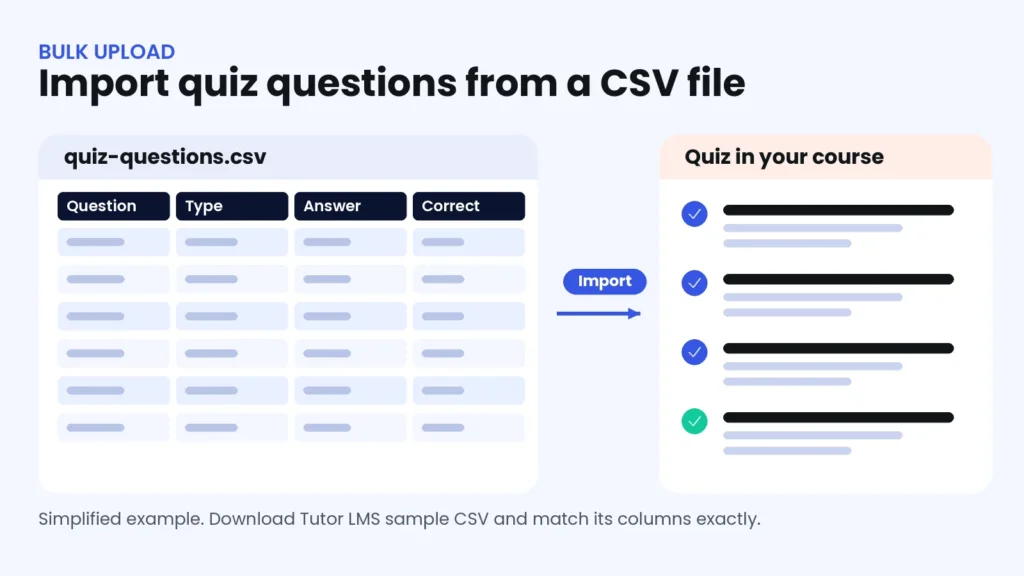
For quiz questions, the Quiz Export/Import addon in Tutor LMS Pro lets you import a CSV file. A good workflow is to download the sample CSV, ask an AI assistant to write your questions in exactly the same column structure, review the answers and then import the file into the course. The quiz import documentation shows the format. Test with a small file first.
Step 10: Review, set the price and publish
Set the course price or enrollment type, add prerequisites and a certificate if you offer them, then preview the course as a student would see it. Click through every lesson, play every video and take every quiz. When everything works, publish the course and share it. Use the checklist later in this guide before you press publish.
No Tutor LMS Pro? Use ChatGPT or Claude outside the plugin
You can still use AI without the built-in feature. Draft the outline, lesson text and quiz questions in a chat assistant, then paste the content into the Tutor LMS Course Builder yourself. It takes a little longer, but it works with any version of Tutor LMS and gives you full control over the wording. Use the prompts below as a starting point and always edit the output.
Copy-and-paste AI prompts for Tutor LMS courses
Replace the text in brackets with your own details, and review every answer.
Prompt 1: Course outline
Create an outline for a beginner course called [course name] for [audience]. Include 5 topics, 3 lessons per topic, one quiz per topic and a final assignment. For each topic write one clear learning outcome. Keep the tone friendly and practical.Prompt 2: Lesson draft
Write a draft for the lesson [lesson title] in the course [course name]. Audience: [audience]. Include a 2-sentence introduction, 3 key points with examples, a short practice task and a 3-sentence summary. Do not invent statistics.Prompt 3: Quiz questions
Write 10 multiple-choice questions based only on this lesson text: [paste text]. Give 4 options each, mark the correct answer and add a one-sentence explanation. Do not ask about anything the text does not cover.Prompt 4: Quiz file for CSV import
Here is the sample CSV structure from Tutor LMS: [paste sample header and one row]. Create 10 new questions about [topic] in exactly this structure, with the same columns in the same order. Return only the CSV text.Prompt 5: Course description
Write a course description of 120 to 150 words for [course name]. Cover who it is for, what students will learn, the requirements and the result they can expect. Use simple language and no exaggerated promises.Tips for better AI-built courses
- Keep a human in the loop. You are the teacher. AI is the assistant.
- Add real examples. Stories, screenshots and results from your own work make courses memorable.
- Keep one consistent voice. Edit AI text so every lesson sounds like the same person.
- Check copyright. Do not paste text from other courses, and review image rights.
- Check accessibility. Add captions to videos and alt text to images.
- Be honest about AI. If you use AI to help write content, consider saying so, and take responsibility for accuracy.
Common mistakes to avoid
- Publishing the first draft. Always review and rewrite.
- Trusting quiz answers blindly. Verify every answer.
- Skipping the plan. A short brief improves every result.
- Forgetting costs. Set an OpenAI usage limit and keep track of usage.
- Exposing the API key. Keep it private and replace it if it leaks.
- Making the course too long. Focus on one clear outcome.
- Ignoring mobile. Preview the course on a phone.
- Not testing the enrollment flow. Buy or enroll as a test student before launch.
Costs and limits to know about
- Tutor LMS Pro: AI Studio is part of the Pro plan, so you need an active license.
- OpenAI usage: generation uses your API credits. Check OpenAI’s current pricing and set limits.
- Languages: Tutor LMS says you can describe your course idea in another language and AI Studio will respond accordingly. Quality varies by language, so have a native speaker review the result.
- Not a replacement for expertise: AI cannot record your videos, build your reputation or know your students.
How wpXpart can help with your Tutor LMS website
At wpXpart we build and improve WordPress learning websites. We can install and configure Tutor LMS, set up payments and memberships, speed up your course pages and help you plan a course structure that is ready for AI-assisted content. Explore our LMS and eLearning website development service, our membership site development or hire a WordPress expert to get started.
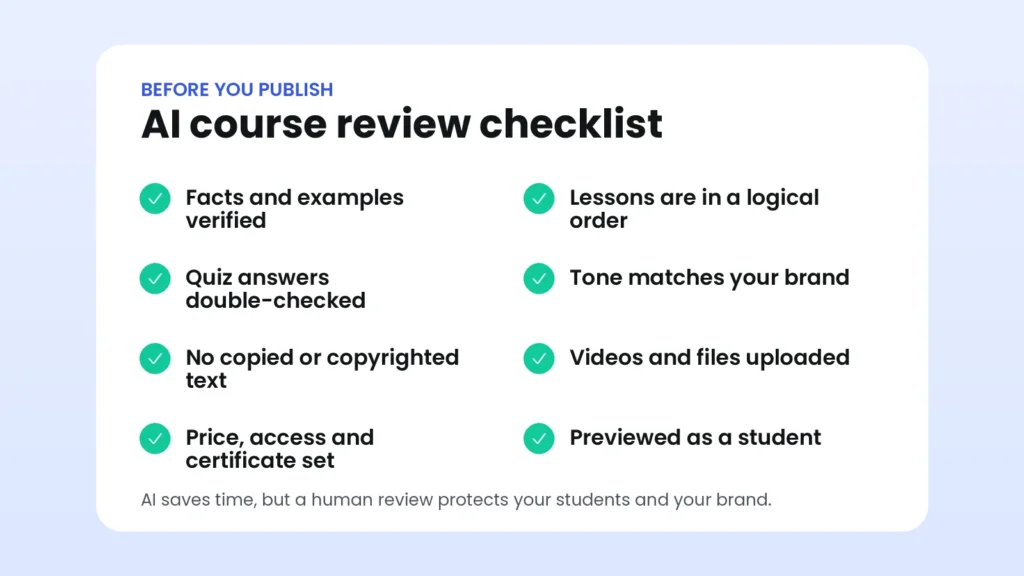
AI course review checklist
Run through this list before you publish any course created with AI.
Frequently asked questions
Is Tutor LMS AI Studio free?
No. According to Tutor LMS, AI Studio is available to Tutor LMS Pro users. You also pay OpenAI for the API usage you generate.
Do I need an OpenAI API key to connect AI with Tutor LMS?
Yes. AI Studio connects to OpenAI, so you create an API key on the OpenAI platform and add it to Tutor LMS.
Is a ChatGPT subscription the same as an OpenAI API account?
They are usually billed separately, so check OpenAI’s pricing and billing pages. AI Studio needs the API side with credits.
Can AI upload my videos and files for me?
No. AI can draft text, quizzes and images, but you upload videos, downloads and other media yourself.
Can I use Claude or Gemini with Tutor LMS?
AI Studio uses OpenAI. You can use other assistants outside the plugin to draft outlines, lessons and quiz files, and then paste or import the content into Tutor LMS.
Can AI create quizzes for my course?
Yes. AI Studio can generate quizzes and single questions, and you can also prepare questions in a CSV file for the quiz import addon. Always check the answers.
Can I create a course in Bengali or another language?
Tutor LMS says you can describe your course in another language and receive content in that language. Always have a fluent reader review the text before you publish.
Will students know the course was made with AI?
Not unless you say so. What matters is that the content is accurate, original in its examples and helpful. Consider being transparent about how you use AI.
Conclusion
To connect AI with Tutor LMS, create an OpenAI API key, add it to Tutor LMS Pro, then use AI Studio to build your outline, lessons and quizzes, and finish by adding your own media, examples and review. AI makes the first draft fast, and your expertise makes the course worth buying.
Need a Tutor LMS website built or improved? Start a project with wpXpart and we will help you launch your online academy.

The wpXpart team designs, builds, speeds up and supports WordPress websites, and shares practical guides along the way.
Need help with your WordPress site?
Tell us about your project and get a clear, written proposal.
There’s more to read
Stay tuned with our latest updates
Subscribe for practical WordPress tips and news.